To factory reset a MacBook with Apple silicon or an Apple T2 Security Chip, go to System Settings > General > Transfer or Reset > Erase All Content and Settings. Got an older Intel Mac? Then start up in macOS Recovery by holding Command (⌘) + R, erase the disk in Disk Utility and reinstall macOS.
Is your Mac slow, throwing up error messages you can't explain, or are you planning to sell your laptop? A clean slate can make a big difference, but you definitely don't want to lose important files by accident. So always back up your Mac first.
In our experience, good preparation is half the job. Without the right approach, you can lose data or get stuck on an activation screen. Resetting a MacBook takes care, but luckily Apple has made the process a lot simpler in recent years.
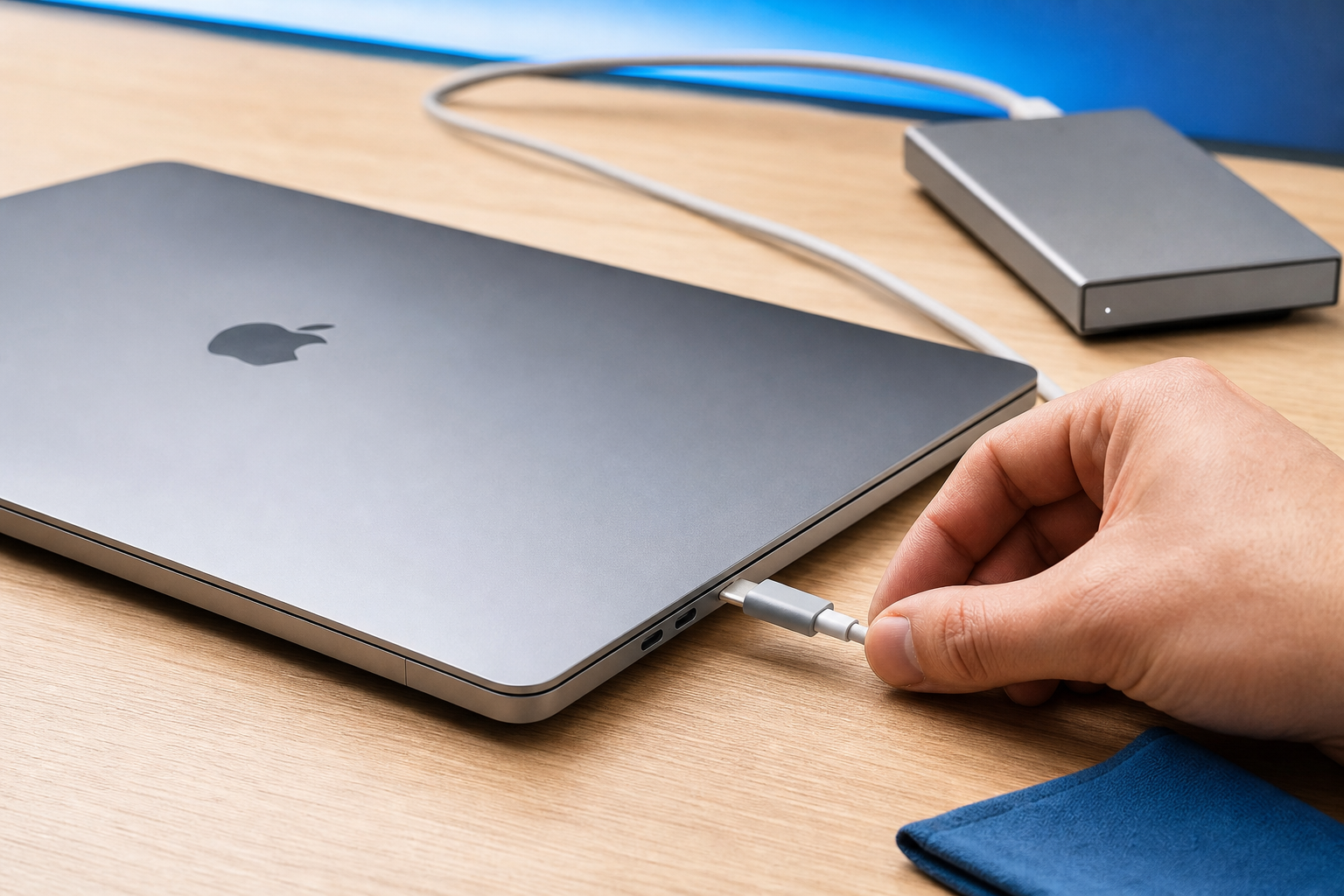
Checklist: what to do before you reset your MacBook
Follow these steps carefully before you start erasing, so you don't lose data for good or run into activation problems.
Make an up-to-date Time Machine backup: Connect an external hard drive and save your most important personal files and settings. A factory reset wipes literally all data, so without this step your information is gone for good. Always check the date of the last successful backup in the menu bar.
Sign out of your Apple Account completely: Open System Settings and click your name at the top of the window. Sign out of iCloud, iMessage and the App Store so the laptop doesn't keep asking for your old login details after the reset. Also remove the Mac from the Find My app straight away to turn off Activation Lock.
Unpair all your Bluetooth devices: Go to your Bluetooth settings and forget mice, keyboards and wireless headphones. This stops accessories from trying to reconnect to the wiped laptop, which matters especially if you want to sell your MacBook to a new owner.
Keep the charger plugged in: The reset uses a lot of power and the laptop must never shut down halfway through. Plug in the original power adapter before you start erasing.
If your MacBook is in a hard shell case, check the fit: a good fit leaves the hinges and vents free, and that matters here, because reinstalling takes anywhere from 30 minutes to a few hours and the Mac gets warm. If the case blocks the vents, don't use the MacBook with that case on. If the case sits crooked, check that it consists of two matching parts, clip it on evenly without pressing on the screen, and don't force any clips if the fit isn't right straight away.
Once the case is clipped on, check that the charger and your other accessories, such as a USB-C hub, still plug fully into the ports. If the edge of the case pushes the plug halfway out, the power can cut out while erasing or reinstalling.
Is the power button or Touch ID button hard to reach through the case? Then take the case off before you reset your MacBook, because on a Mac with Apple silicon you need that button to get to the startup options.
If the case is off anyway, clean it right away with a soft, slightly damp cloth. Don't use harsh cleaners, solvents or abrasive materials. It helps if you're selling the Mac afterwards.
Which reset method do you need for your Mac?
Your processor and operating system decide whether you can use a quick assistant or need to format the disk manually in a recovery environment.
| Mac type | macOS version | Method required | Opening Recovery |
|---|---|---|---|
| Apple silicon (M1, M2, M3 and later) or Apple T2 Security Chip | macOS Monterey, macOS Ventura or later | Erase All Content and Settings (quick) | Hold the power/Touch ID button until startup options appear (Apple silicon) or Command (⌘) + R (T2) |
| Older Mac with Intel processor | macOS Big Sur or earlier | macOS Recovery (manual) | Command (⌘) + R at startup |
Not sure which Mac you have? Click the Apple logo in the top left and choose About This Mac. There you'll see the chip (for example Apple M1 or an Intel processor) and your macOS version. If the laptop won't start up any more, look for the model number on the underside of your MacBook.
Command + R does nothing on a Mac with Apple silicon. We often see people then assume Recovery is broken.
Choose the quick method with Erase All Content and Settings if you have a recent chip and are running at least macOS Monterey or macOS Ventura. So an Intel Mac with a T2 chip running macOS Monterey also qualifies for the quick method. Choose the manual method via Recovery if you have an older Intel Mac, or if the laptop won't start up normally at all.
Quickly reset your MacBook with Erase All Content and Settings
Apple recommends this built-in assistant for modern Macs with Apple silicon because it makes the process much quicker and less prone to errors.
-
1
Open System Settings
Click the Apple logo in the top left of your screen. Still on macOS Monterey? Then this menu is called System Preferences instead of System Settings.
-
2
Go to the right menu
Click General in the left-hand column and select Transfer or Reset on the right. On macOS Monterey, you'll find Erase All Content and Settings in the menu bar at the top of your screen under System Preferences.
-
3
Start the erase assistant
Click the Erase All Content and Settings button. You'll now be asked for your administrator password; this is the password you normally use to unlock the laptop after starting it up.
-
4
Check the warnings
The assistant shows a detailed overview of exactly which accounts, network settings and data will be removed. Confirm that you want to continue with Erase All Content and Settings.
-
5
Sign out of iCloud
Enter your password when the assistant asks for it. This is a required security step so the laptop is safely released from Activation Lock.
-
6
Confirm the final step
Click Erase All Content and Settings one last time in the red warning window.
-
7
Let the Mac restart
The screen goes black and the Mac restarts. During this process, Erase All Content and Settings deletes the encryption keys.
In practice, you'll notice the erase itself is fairly quick. Still, allow more time: the total depends on your Mac model and your internet connection, and if macOS has to be downloaded again, it can easily take 30 minutes to a few hours. Because Erase All Content and Settings doesn't physically overwrite the data but destroys the keys, your data is unreadable straight away.
So only use Erase All Content and Settings if you're 100% sure about your backup. Can't see the Erase All Content and Settings option, for example on an older Intel Mac or an older version of macOS? Then reset the MacBook via the recovery environment with Disk Utility and reinstall macOS afterwards.
How to factory reset an older Intel MacBook
If the Erase All Content and Settings option is missing, you'll need to reset your MacBook to factory settings by manually wiping the drive from a secure startup environment.
-
1
Start up in Recovery
Shut the Mac down completely. Turn it back on and immediately press and hold Command (⌘) + R. Only let go of the keys when you see the Apple logo or a spinning globe appear on screen.
-
2
Choose a network
Sometimes the Mac asks you to connect to Wi-Fi first. Select your network and enter the password to load the recovery environment.
-
3
Open Disk Utility
As soon as the macOS Recovery window opens, select Disk Utility from the list and click Continue.
-
4
Select your startup disk
Choose your main drive in the sidebar on the left. Make sure you select the top level; in most cases this disk is simply called Macintosh HD.
-
5
Format the disk
Click the Erase button at the top of the window. Give the disk a name (preferably keep Macintosh HD) and select APFS from the drop-down menu. For very old Macs with a mechanical hard drive, choose Mac OS Extended (Journaled).
-
6
Confirm the erase
Click Erase, or Erase Volume Group if that option appears. The Intel Mac now permanently erases all partitions and personal files.
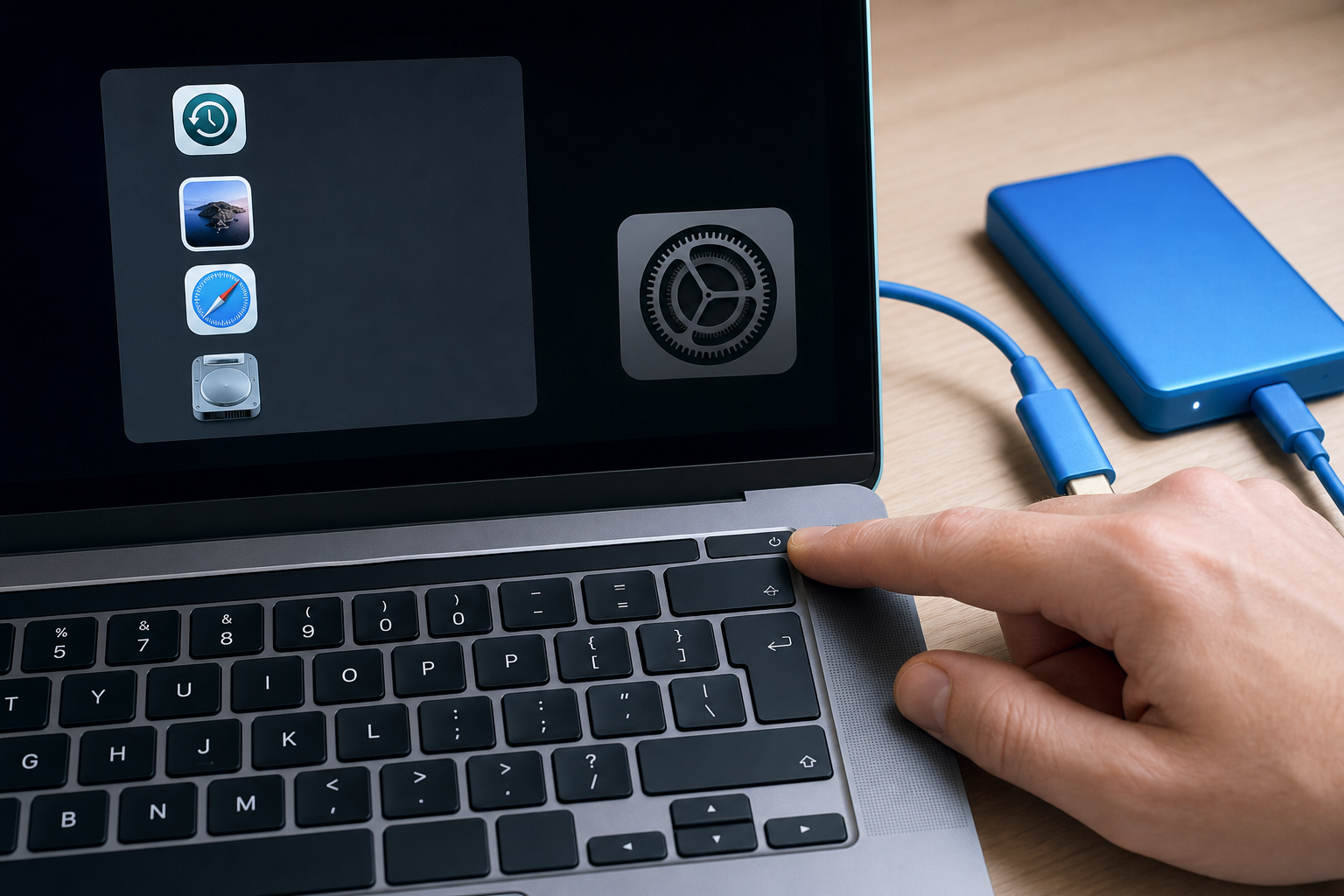
Reinstalling macOS after erasing
Once the drive has been completely wiped, the computer no longer has an operating system to start up from. Quit Disk Utility using the red button in the top left or via the menu bar to return to the main Recovery menu.
On this overview screen, choose Reinstall macOS and click Continue. Accept the software licence agreement and select the Macintosh HD disk you've just erased as the destination. The laptop now connects to Apple's servers to securely download and verify the right files. Depending on your internet speed and your Mac model, the installation takes anywhere from thirty minutes to a few hours.
Keep the MacBook plugged into the charger throughout the installation. That way, the battery won't run flat halfway through and stop the installation before macOS is finished. Don't close the lid; just let the laptop get on with it. The Mac will restart several times during the installation, and you're only done once the welcome screen appears.
FAQs about factory resetting a MacBook
What should I do if I've forgotten my Apple Account password while resetting?
Use password recovery on another trusted Apple device, such as your iPhone or iPad. On that device, go to Settings, tap your name and choose 'Sign-In & Security' to set a new password straight away. Without the correct password, Activation Lock blocks the MacBook, so you can't complete the factory reset.
Does a factory reset permanently delete all my personal data?
Yes, the encryption keys are destroyed immediately, so all stored data becomes unrecoverable. Even with specialist recovery software, it's impossible to get back photos, documents or saved passwords after using Erase All Content and Settings. That makes the process very safe if you're selling your Mac or trading it in.
Can I factory reset my MacBook without making a backup?
Yes, but you'll lose all your local files for good. Only skip the backup if the laptop contains nothing important, or if you're absolutely sure all your documents and photos are already synced to a cloud service such as iCloud or Google Drive. Resetting a MacBook can't be undone.
How do I factory reset my MacBook if it won't start up?
Use Internet Recovery by starting up the Mac and holding Command + Option + R. The Mac then downloads a temporary recovery environment directly from Apple's servers. From there, you can still open Disk Utility to erase the disk and install a fresh operating system.
By following the right steps, you make sure your personal data doesn't end up in the wrong hands and that a new owner doesn't run into Activation Lock. Check which version of macOS you're running right now via the Apple logo in the top left of your screen, and start your backup today.