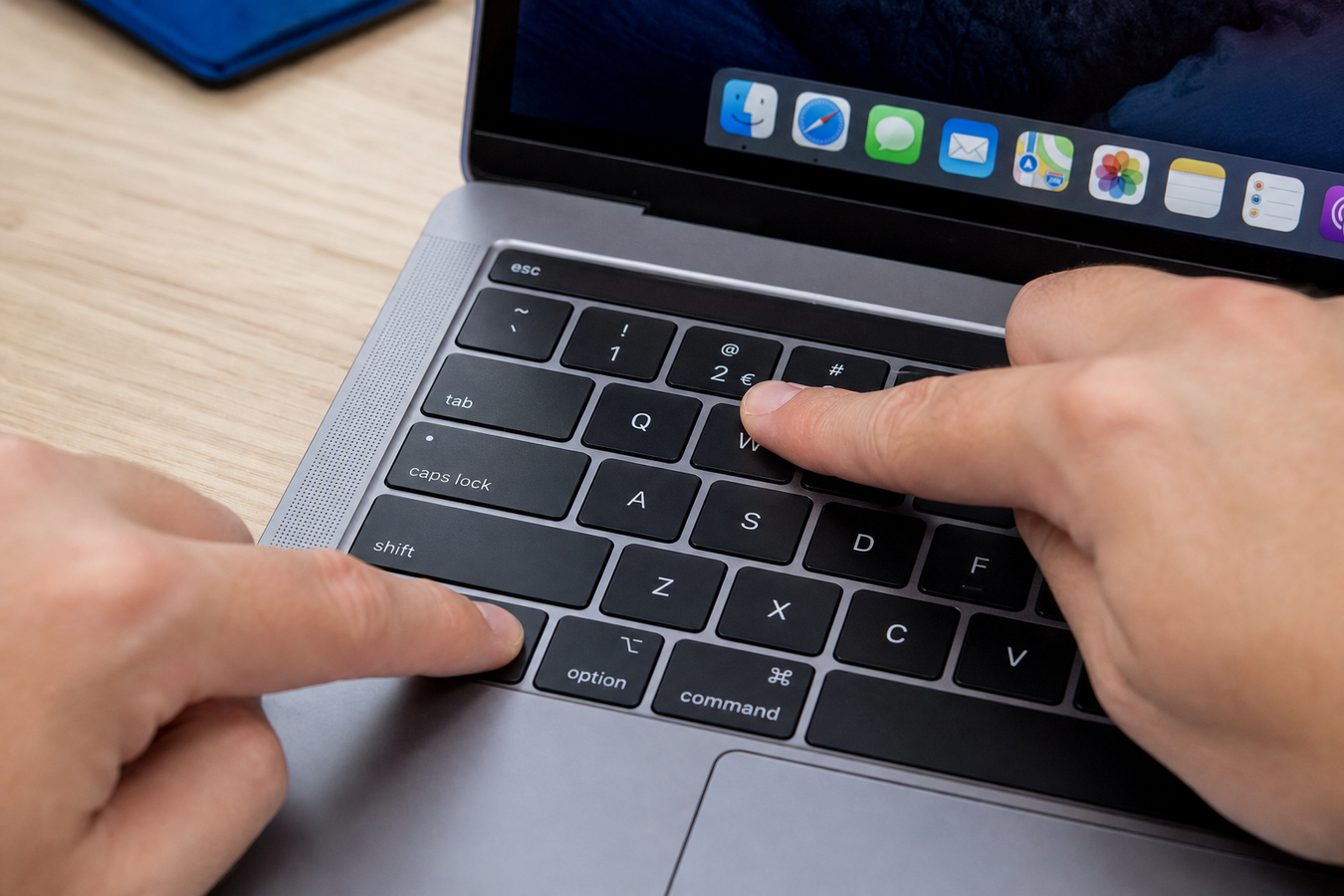
To type the euro sign (€) on a MacBook or iMac, press Option (⌥) + 2 if your Mac uses the Dutch keyboard layout. If your Mac is set to 'U.S.' or 'U.S. International', use Option + Shift + 2 instead. Neither works? Open the character viewer with Control + Command + Space and search for "euro".
You just want to type a price quickly, but you're staring at your Apple keyboard wondering where on earth the euro key is. Because the symbol isn't printed on the keys, plenty of Mac users get confused and lose time looking for it. Which shortcut you need depends on your keyboard layout, and with a few smart settings you'll never have to hunt for this particular character again.
A MacBook case protects your laptop during everyday use and doesn't change how you type. Hardcases usually consist of separate top and bottom shells that clip around the laptop, so your keyboard stays free. The ports stay accessible too, so you can still use your cables and connections as normal.
When you're on the move, a laptop sleeve works better, because it protects your closed MacBook while you carry it. A neoprene sleeve absorbs knocks better than thin, unpadded fabrics. A cotton sleeve mainly protects against scratches and dust, so choose one if your laptop mostly travels in a bag that doesn't get thrown around.

The quickest way: the euro key shortcut on your Mac
The most efficient way to type the euro symbol on a standard Mac takes just two or three fingers. Follow these steps to put the symbol straight into your text without touching your mouse.
-
1
Find the Option key (Alt)
You'll find this key to the left and right of the Command key on the bottom row of your Apple keyboard. On newer models it's marked with the ⌥ symbol.
-
2
Find the Shift key
You'll find it on the far left and far right of the keyboard. You'll recognise it by the wide, hollow arrow pointing upwards (⇧).
-
3
Use the standard shortcut
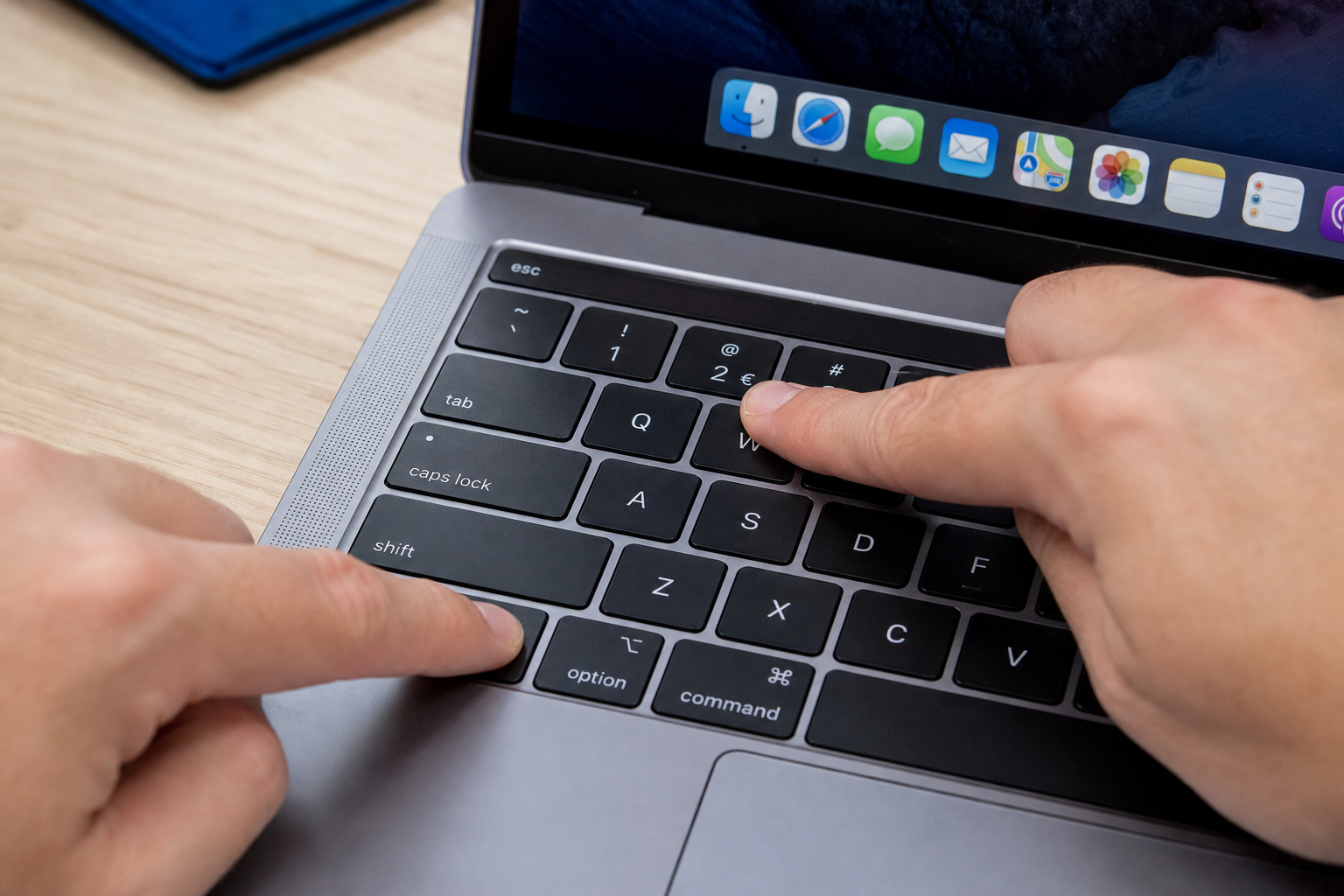
Hold down the Option key and the Shift key at the same time. Then briefly press the number 2 at the top of your keyboard (Option + Shift + 2). This euro sign shortcut works anywhere you type: in text fields, documents and messages.
-
4
Check the result
Release all the keys. If the shortcut worked, the € symbol appears on your screen straight away. Seeing a different character? Then the shortcut doesn't match your keyboard layout. Try Option + 2 instead, or check which layout is active under System Settings > Keyboard > Input Sources. On macOS versions before Ventura, that menu is still called System Preferences.
Use Option + Shift + 2 if your keyboard is set to the 'U.S.' or 'U.S. International' layout. Skip the three-key shortcut and use just Option + 2 if you've specifically set your input source to 'Dutch' in your system settings.
Neither one working? On user forums, around 70% of reports about a missing euro sign turn out to be caused by the wrong keyboard layout, so check that setting first before you start doubting your keyboard.
Differences by country: keyboard layouts on a MacBook
A shortcut that works perfectly on one Mac can sometimes produce a completely different symbol on another. That's because the output depends on the active keyboard layout in macOS. Many Dutch Mac users work with the 'U.S.' or 'U.S. International' layout (QWERTY), for example because they also use Windows or English-language software. If you buy your MacBook abroad, you'll come across different layouts.
| Country / layout | Keyboard type | Euro sign shortcut | Notes |
|---|---|---|---|
| Euro sign MacBook Netherlands (U.S. layout) | U.S. or U.S. International (QWERTY) | Option + Shift + 2 | The default on most Dutch Macs. The shorter 'Option + 2' shortcut gives you a ™ symbol here. |
| Netherlands (Apple-specific) | Dutch (QWERTY) | Option + 2 | The quickest shortcut. Add this layout in System Settings if you want to skip the Shift key. |
| Euro sign MacBook Germany | German (QWERTZ) | Option + E | The Z and Y are swapped. The euro sign is logically linked to the letter E. |
| Euro sign MacBook France | French (AZERTY) | Option + $ (or Option + *) | A completely different layout. The euro sign is often at the top right near the Return key, depending on the exact model year. |
Not sure which key gives you the euro sign on your layout? Open the macOS Keyboard Viewer: under System Settings > Keyboard > Input Sources, turn on the input menu in the menu bar and choose 'Show Keyboard Viewer'. Then hold down the Option key, with or without Shift, and the on-screen keyboard shows you exactly where the € is.
Choose the Dutch input source under System Settings > Keyboard if you only type Dutch text and want the quickest shortcut. Stick with the U.S. International layout if you do a lot of coding or regularly switch between macOS and Windows.
If you have a MacBook from Germany or France, keep that in mind with accessories too. A keyboard cover with QWERTZ or AZERTY print won't match a Dutch layout, and a case made for a different model won't fit properly. So before you buy, always check the exact MacBook model, the screen size and the model number on the underside of the casing, as that's how you pick the right case; an iMac cover needs to match the specific screen size of your iMac.
Other ways to get the euro symbol on macOS
Sometimes your physical keyboard just won't cooperate. A faulty Option key, a sticky number row or an unfamiliar external layout makes typing special characters really frustrating. Luckily, macOS has built-in software options for getting the euro symbol into your document anyway. These alternatives don't need any awkward finger gymnastics and work regardless of your keyboard layout.
Around 15 to 20 percent of Mac users prefer these visual methods to keyboard shortcuts. Apple has built in the emoji and symbols menu for this, along with a powerful text replacement feature. That said, we often see that a sticky key starts with crumbs or a knock in your bag, so prevention pays off too. Faux leather sleeves combine a sleek look with basic protection, and a zip, magnetic or hook and loop closure keeps the sleeve shut so nothing gets between your keys on the go.

Using the emoji and symbols menu
Apple's built-in character viewer is a visual lifeline when shortcuts let you down. Here's how to insert the character manually:
-
1
Open the Character Viewer
Place your cursor in the text field where you want to type the price. Press Control + Command + Space at the same time to open the pop-up window.
-
2
Expand the menu
Only seeing emoji? Click the small window icon at the top right to switch to the expanded view with all special characters.
-
3
Find the euro sign
Type "euro" in the search bar at the top right. You can also go to the 'Currency Symbols' category in the left-hand column.
-
4
Insert the symbol
Double-click the € symbol in the results. The character appears straight away wherever your cursor is in your document.
Go for this visual method if you rarely type the euro symbol on your Mac and don't want to memorise new shortcuts.
Setting up text replacement
If you type quotes or invoices every day, text replacement saves you a huge amount of time. You type a simple abbreviation and macOS instantly turns it into the right currency symbol.
Go to the settings: Open 'System Settings' via the Apple logo at the top left. Scroll down, click 'Keyboard' and select the 'Text Replacements' button.
Create an abbreviation: Click the plus sign (+) at the bottom left to add a new line to your list.
Pick a smart trigger: In the 'Replace' column, type a logical abbreviation, for example "eur" or "eeur". Make sure it's a letter combination you never use in normal sentences.
Link the euro symbol: In the 'With' column, paste or type the euro sign (€). Use the character viewer once to do this, or simply copy the character from this page.
Test it: Close the settings, open a blank document and type "eur" followed by a space. The text now changes straight into €.
Set up this text replacement if you want to save time every day and not depend on physical keys.

Using the euro sign in Microsoft Word and Excel
Specific apps such as Microsoft Word and Microsoft Excel sometimes follow different rules. Although the standard macOS shortcuts usually work, these programs have their own, optimised ways of handling currency.
Currency format in Microsoft Excel: Don't type the euro sign by hand for every amount. Select the cells you want, go to the 'Home' tab and click the arrow next to the banknote icon (Number Format). Choose '€ Dutch (standard)' here to format the numbers automatically.
The symbol menu in Microsoft Word: Is your Mac shortcut not working in Word? Use the built-in library. In the ribbon, click 'Insert', choose 'Symbol', select 'More Symbols' and double-click the euro sign.
If the shortcut in Word gives you a character other than €, check your keyboard layout first. With the Dutch layout you type the euro sign with Option + 2; with 'U.S.' or 'U.S. International' you need Option + Shift + 2. The 'Insert' > 'Symbol' menu always works, whatever layout you use, but it's slower than the shortcut.
Always use the cell formatting in Excel rather than typing by hand if you're working with formulas. Avoid manual entry in large datasets to prevent calculation errors and corrupted data.
Frequently asked questions
Why isn't the euro sign printed on my keyboard?
Apple goes for a minimalist design and leaves out less frequently used special characters to keep the keyboard visually clean. On most Mac keyboards, the '2' key only shows the at sign (@). The euro sign is still hidden under this key in the software, though, and you can bring it up straight away with the Option key.
What should I do if Option + Shift + 2 gives a different character (such as ™)?
You're currently using the 'U.S. International' keyboard layout and forgot the Shift key, or your layout is set to plain 'U.S.'. To avoid the trademark symbol (™), press Option, Shift and 2 at the same time. Would you rather use the shorter Option + 2 shortcut? Go to System Settings > Keyboard > Input Sources and add the 'Dutch' layout.
If the 2 or the Option key sometimes doesn't respond at all, there's often dust or crumbs around the key. We recommend wiping your case and MacBook regularly with a soft, dry cloth, as wet wipes or cleaning products shouldn't get between the keys.
How do I type the euro sign on an external (non-Apple) keyboard?
On an external Windows keyboard connected to a Mac, you use the Alt key in place of the Option key. The shortcut then becomes Alt + Shift + 2 (or just Alt + 2 with a Dutch layout). If your external keyboard has a number pad on the right, you can also hold down the Alt key and type the code 0128.
How do you type the euro sign (€) on a MacBook or iMac? Here's how!
The quickest way is the shortcut Option + Shift + 2 (with a U.S. International layout) or Option + 2 (with a Dutch layout). If that doesn't work, check your keyboard settings in System Settings. You can also use the shortcut Control + Command + Space to open the character viewer and pick the symbol visually.
How can I see which keyboard layout my Mac is using?
You can see the active keyboard layout via the Apple menu > System Settings > Keyboard > Input Sources. If it only lists 'U.S.' or 'U.S. International', Option + 2 won't work and you'll need Option + Shift + 2. On older macOS versions, this menu is called System Preferences instead of System Settings.
How do I insert the euro sign using the character viewer?
Press Control + Command + Space, type "euro" in the search bar and double-click the € sign. If you only see emoji, click the icon at the top right for the expanded view and choose the Currency Symbols category on the left. It's handy if you only need the symbol now and then; for everyday use, the shortcut is quicker.
Can I have "eur" automatically turn into €?
Yes, with macOS text replacement you can automatically turn an abbreviation like "eur" into €. Go to System Settings > Keyboard > Text Replacements, click the plus sign, enter "eur" under Replace and the euro sign under With. Do pick an abbreviation you never type as a normal word, though, or "europe" will end up as "€ope".
Does the euro sign shortcut also work in Word and Excel?
Yes, Option + 2 (or Option + Shift + 2 with a U.S. layout) also works in Microsoft Word and Microsoft Excel on a Mac. In Word you can also insert the symbol via Insert > Symbol > More Symbols. In Excel you often don't need to type it at all: set the cells to the currency format '€ Dutch (standard)' and the euro sign appears automatically.
How do I type the euro sign on my iPhone or iPad?
On an iPhone or iPad, tap the 123 key at the bottom left and then the € sign in the numbers view. So you don't need a shortcut there. If you use a separate keyboard with your iPad, the same Option shortcut as on the Mac usually works, depending on the layout you've set.
Whether you use the standard shortcut, change your keyboard layout or set up text replacement: typing the euro sign on a Mac is easy once you know the tricks. Try Option + Shift + 2 in your next document, or set up text replacement today so typing € is as easy as possible!