To download YouTube videos with YouTube Premium, use the Download button below the video, either in the YouTube app or on youtube.com in Chrome, Edge, Firefox or Opera. The video stays encrypted inside YouTube. You can watch it offline for up to 29 days, as long as you stay signed in to the same YouTube Premium account.
So you won't get a separate MP4 file. What you will find here is how downloading works on each device and where to find your videos afterwards. We also cover which quality suits your storage and what to do if the button is missing.
How to download YouTube videos with YouTube Premium on Android, iPhone and iPad
Why can't you see a download button when you're paying for Premium? Usually you're on the wrong account. Downloading only works with an active YouTube Premium subscription on the Google account you're signed in with in the YouTube app.
If that's sorted, just tap Download below the video. On an account without Premium you can't download, even if you do have a subscription on another account.
Check that first. In the YouTube app, tap your profile picture in the top right and see whether the Premium logo is there. If it isn't, switch to the account you took out Premium on.
Using two Google accounts on one mobile phone, say one for work and one personal? Then the app is often on the wrong account. Tap your profile picture and Switch account to pick the right YouTube Premium account.
-
1
Open the YouTube app on your Android device, iPhone or iPad.
-
2
Open the video you want to watch offline, for example a podcast episode for the train.
-
3
Tap Download below the video. You'll find the download button among options like Share and Save; sometimes you need to swipe right.
-
4
Choose the video quality. Lower saves storage, higher looks better on a tablet.
-
5
Wait for the tick. As long as you see a spinning circle, the download is still in progress.
If you see a download option in the three-dot menu next to a video in a list or search results, you can use that too. Whether that option appears depends on your app version. The Download button below the open video is the reliable route.
Want a whole playlist offline? Check whether your app version shows a download button on the playlist page, and otherwise download the videos one by one. Do check how many videos it contains first, because a playlist of 40 vlogs fills your storage fast.
It works the same on Android and on iPhone or iPad. Buttons and menu names sometimes differ slightly between app versions, but the steps stay the same.
Then test whether it really works: turn off Wi-Fi and mobile data for a moment and play the video. If your connection drops while downloading, YouTube picks up automatically once you're back online. So there's no need to start over.
Downloading on your computer in Chrome, Edge, Firefox or Opera
Four browsers support downloading with YouTube Premium on a computer: Chrome, Edge, Firefox and Opera. Plenty of articles and AI answers still say you can't do it on a PC or laptop, but that's no longer true.
-
1
Open youtube.com in Chrome, Edge, Firefox or Opera. Other browsers don't show the download button, so Safari or a lesser-known browser won't work.
-
2
Sign in to your YouTube Premium account. Click your profile picture in the top right and check you're in the right Google account, especially on a shared laptop at home.
-
3
Open the video you want to keep, for example a long course video for the train.
-
4
Click Download below the video. Once it's done, the video is ready to watch offline.
-
5
Find your video under Downloads in the left-hand menu on youtube.com.
There is a limit, though. You can only play a downloaded video within YouTube, via Downloads on youtube.com and signed in to the same Premium account. No separate file appears in the Downloads folder on your PC, so you can't drag it to a USB stick or open it in another video player.
If you sign out or switch Google accounts, you can no longer play the video. Watch out for this especially on a laptop you share with housemates.
Finding and deleting downloaded videos
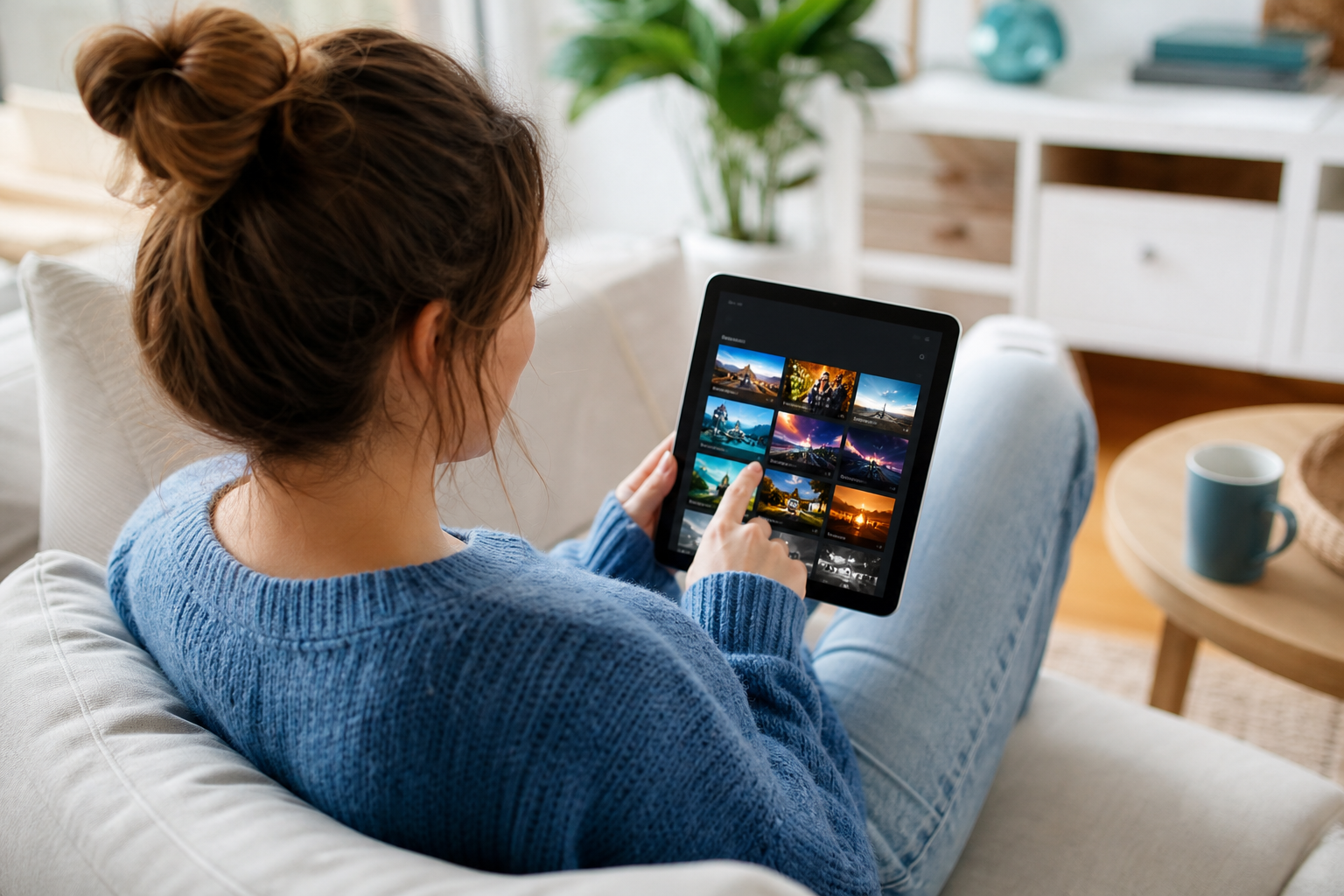
You land after a flight and notice your mobile phone is almost full of videos you've already watched. You'll find those downloaded videos in the YouTube app under the You tab and then Downloads, so they're not in your gallery. On an older version of the app, that tab is still called Library, but the Downloads tab with all your offline videos is there too. On a computer, click Downloads in the left-hand menu on youtube.com. There you can also see straight away which videos are still taking up space.
You can delete your downloads one video at a time or all at once. To remove one video, tap the three-dot menu next to it and choose Delete from downloads. To clear everything at once, go to Settings > Background & downloads > Delete all downloads. We recommend doing that right after a holiday or flight, because a few playlists in high quality eat up a lot of storage. That way you also free up room for photos and app updates.
On a shared tablet, it works differently from what many people expect. Downloads are stored per account, so if you switch to your partner's or child's account, you won't see your videos. They still take up storage, though, so clear them out from the account you downloaded them with.
What can and can't you do with a Premium download?
Expect a maximum of 29 days of offline viewing: after that, your device needs to go online briefly so your downloads can be checked. During that connection, YouTube checks whether the video is still available and whether the licence has changed.
Reconnecting is easy. Open the YouTube app on Wi-Fi or mobile data and stay signed in to the same Premium account. After that check, you can watch offline for up to 29 days again.
In some countries a shorter period of 48 hours applies. Older articles sometimes still mention 12 days, but YouTube's official Dutch-language information now says 29 days.
So downloaded videos stay available as long as three things hold: your Premium subscription is active, you're signed in to the same account and your device goes online at least once every 29 days. If your subscription ends or you sign out, your downloads won't play any more. The same happens if the creator takes a video down: it disappears the next time your device connects, even if the 29 days aren't up yet.
Cancel Premium before a long trip and you'll be left with an empty downloads list while you're away. So keep the subscription running until you're back home.
| What do you want to do? | Possible? | Why |
|---|---|---|
| Watch offline on a plane | Yes | Aeroplane mode is no problem, as long as you stay within the 29 days |
| Keep watching after more than 29 days offline | No | Your device has to go online first so YouTube can check your downloads |
| Watch after your subscription has ended | No | Downloads only work with an active Premium subscription |
| Share a download via WhatsApp | No | The video is stored encrypted in YouTube and isn't a separate file |
| Transfer to another device | No | A download stays on the device you made it on, so download it again on the other device |
| Play on a different account | No | Downloads belong to the YouTube Premium account you made them with |
Going away? Download at home before you leave. Premium is meant for use in the country where you took out the subscription. Features may therefore work differently abroad, and in a country without Premium, downloading may not work at all.
Anything already on your mobile phone, you can simply watch offline while you're away. If you're gone for longer than a month, connect to Wi-Fi briefly halfway through.
How do you get a YouTube video into your gallery?
With YouTube Premium you can't get a video into your gallery, because Premium downloads are stored encrypted in the YouTube app and never become a separate MP4 file. Here's what you can do:
-
1
Watch within YouTube. Your download only appears under You > Downloads, not in your gallery or file manager. Because YouTube stores the video encrypted on your device, you can't open it in another video player, edit it in an editing app or send it via WhatsApp. That's down to copyright and licensing: the video stays linked to your account.
-
2
Download your own videos via YouTube Studio. Did you upload the video yourself? Then you can download it in YouTube Studio as a regular file, which you can then save to your gallery or PC.
-
3
Stick to the official button. The only safe way to download is via Download in YouTube itself. If a site asks for your Google login details, don't enter anything.
Setting download quality, storage and data usage
Which video quality should you choose when your mobile phone only has a few gigabytes free? In practice, higher quality always takes up more storage, but YouTube doesn't give fixed figures per setting. So it helps to choose based on screen size and situation:
| Quality | Storage | Picture | Suits |
|---|---|---|---|
| Low | Little | Fine on a small phone screen, blurry on a tablet | Commuting by train, podcasts and talking-head videos |
| Medium | Medium | Sharp enough on a phone | A flight with a whole playlist |
| High | A lot | Noticeably better on a big screen | Tablet on holiday, films and nature documentaries |
You choose the download quality in the YouTube app when you tap Download, if YouTube gives you that choice. The options you see can vary by video, app version and device. So check which quality is selected each time you download, especially if you switch between phone and tablet. A video for the small screen on the train doesn't need high quality, but for a film on the tablet, the highest setting YouTube offers is worth it.
In the app's download settings you can also choose whether YouTube downloads only over Wi-Fi or over mobile data too. Exactly where that option sits and what the menu is called can vary by app version and device, so look for the download sections in the settings. If Wi-Fi only is switched on, a download on mobile data won't start until you're back on a Wi-Fi network. If you switch on downloading over mobile data, it comes straight out of your data allowance, and a playlist in high quality can easily eat up a big chunk of it. So check which setting you have on, because it decides whether a download starts straight away when you're out and about. On a small data plan, go for Wi-Fi only and download at home.
Smart downloads automatically saves recommended videos based on your watch history. You turn the feature on or off by tapping your profile picture and opening the download settings. That's handy for commuters, but the feature also fills your storage with videos you didn't choose yourself. Smart downloads need a connection to start and stop automatically when storage runs low. If your storage is tight, switch them off and check the storage in your phone's settings before downloading a whole playlist.
Before you leave: checklist for watching YouTube videos offline on your trip
You can watch offline for up to 29 days with YouTube Premium, but only if you get everything ready at home. Run through this list the evening before you leave.
Download at home on your own Wi-Fi network. You won't know how fast and stable the airport Wi-Fi is until you get there, and downloading a whole playlist takes time.
Choose the video quality based on your free storage and your screen. Medium is enough for a phone; on a tablet you will notice the difference with Full HD.
Put your device in aeroplane mode and play a few videos. If that doesn't work, you'll find out now rather than at 10 kilometres up.
Stay signed in to your YouTube Premium account. Don't sign out or switch accounts, or your downloads won't play any more.
Update the YouTube app before you leave, not on the way.
Fully charge your phone or tablet.
Away for longer than 29 days? Go online briefly halfway through, so YouTube can check your downloads and they keep working.
Download not working or button missing? Check these points
You're on the train, you want to save a playlist for the tunnel and the download button does nothing. It's usually one of these points, so work through them from top to bottom.
Check whether Premium is active and you're on the right account. Tap your profile picture: if a different Google account shows up there, you won't see a download button.
Check whether the video can be downloaded at all. Rights, an age restriction, the creator's choice or your region can block downloading. There's nothing you can do about that.
On mobile data? By default, YouTube only downloads over Wi-Fi. Switch off Download over Wi-Fi only in Background & downloads, or wait until you're back on Wi-Fi.
Check how much storage is left on your phone or tablet. With storage that's almost full, a download stops halfway.
Update the YouTube app or your browser. On a PC, downloading only works in Chrome, Edge, Firefox or Opera, so you won't see the button in Safari or another browser.
Download stuck at a few per cent? Check your connection, delete the download and start it again. That works more often than waiting.
Video gone after a trip? Then you've been offline for more than 29 days, or the creator has taken the video down. You can't get a removed video back.
Frequently asked questions
How can I watch YouTube videos offline with YouTube Premium?
Tap Download below the video, then find it under You > Downloads. You can play it there without internet, as long as you stay signed in to the same YouTube Premium account. Test it once at home in aeroplane mode so you know for sure it works.
Can you also download with YouTube Premium Lite?
According to YouTube, Premium Lite lets you download most videos and watch them offline. Premium Lite is cheaper and has fewer features than full Premium. Price and terms vary by country, so check with YouTube what currently applies in your country before you switch.
How can I download a YouTube video and save it on my PC?
Open youtube.com in Chrome, Edge, Firefox or Opera, sign in to your Premium account and click Download below the video. You'll then find the video under Downloads in the left-hand menu. You won't get a file in the Downloads folder on your PC: you can only play it within YouTube, in that browser.
How can I download YouTube videos safely?
Only use the official YouTube Premium download button, in the YouTube app or on youtube.com. If an unknown site or app asks for your Google login details, never enter them. Doing so gives someone else access to your email, photos and payment details.
How can I download YouTube Premium?
You don't download YouTube Premium, because it isn't a separate app. Premium is a subscription you turn on in your existing YouTube account, after which the download button appears in the regular YouTube app. If you also use YouTube Music, Premium works there through the same Google account.
Open the YouTube app today and check under Background & downloads which video quality and Wi-Fi setting are switched on. Then download one video and play it in aeroplane mode. If it works, get the videos for your next trip ready at home over Wi-Fi. Back from holiday? Clear out your downloads straight away so your phone doesn't fill up.