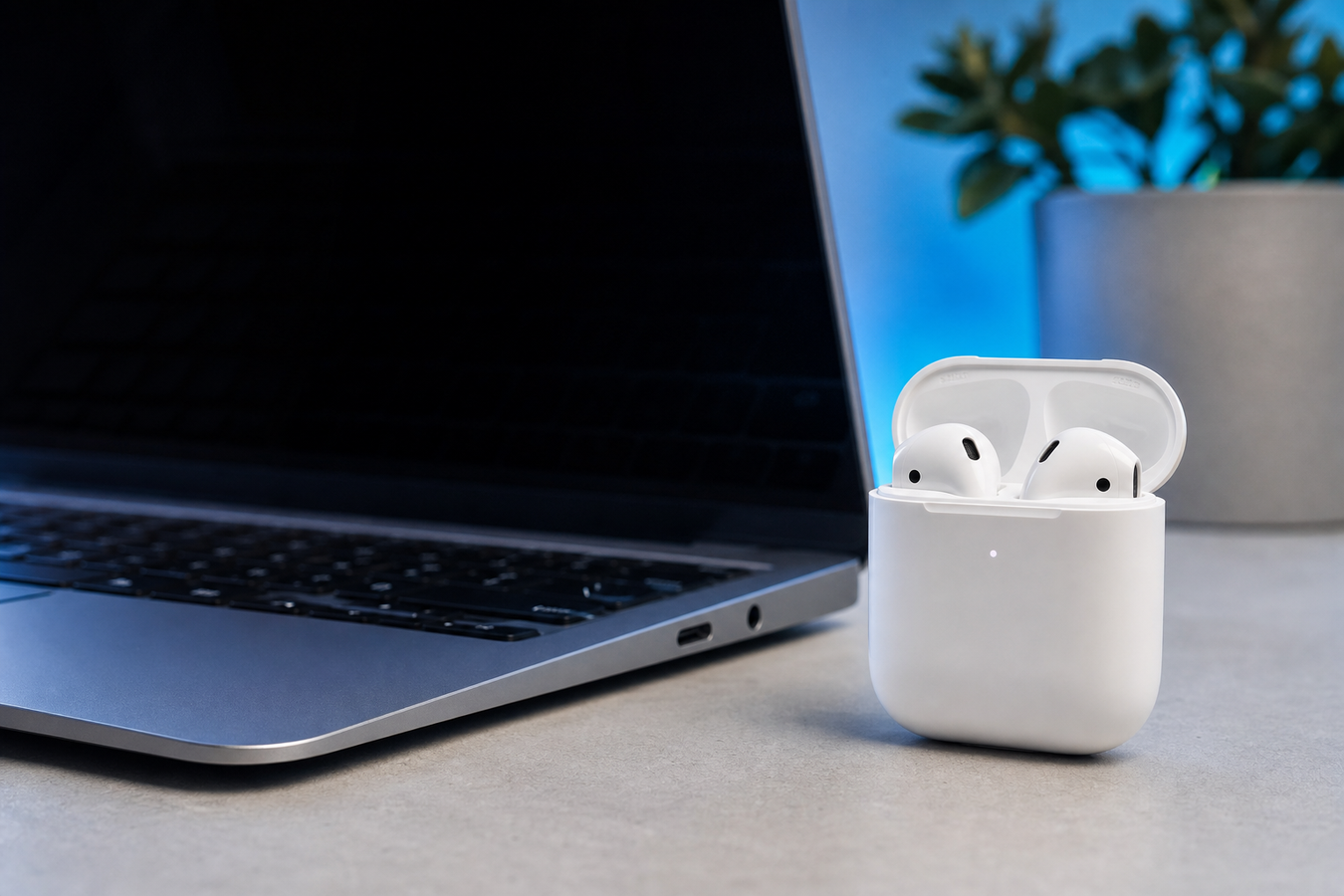
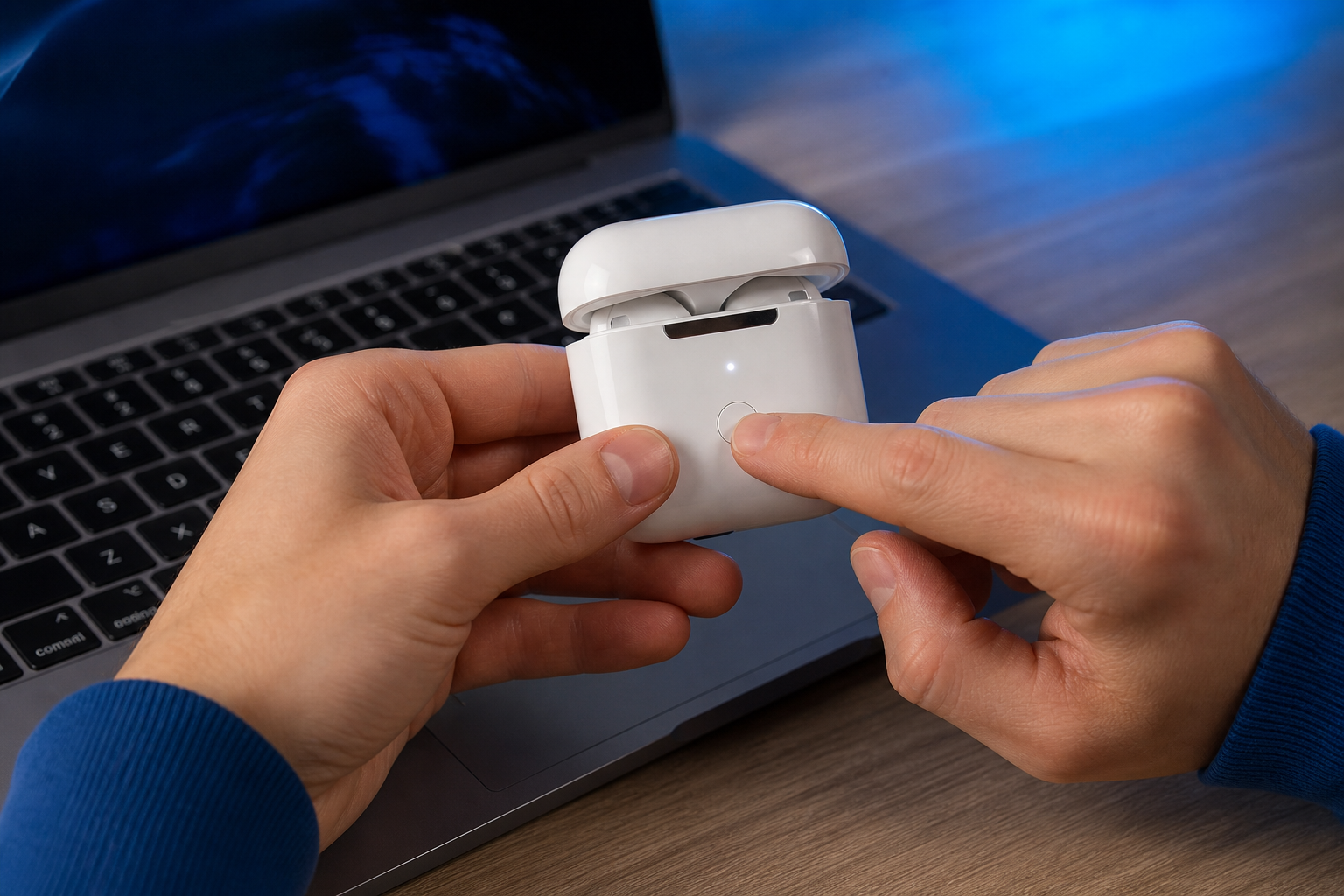
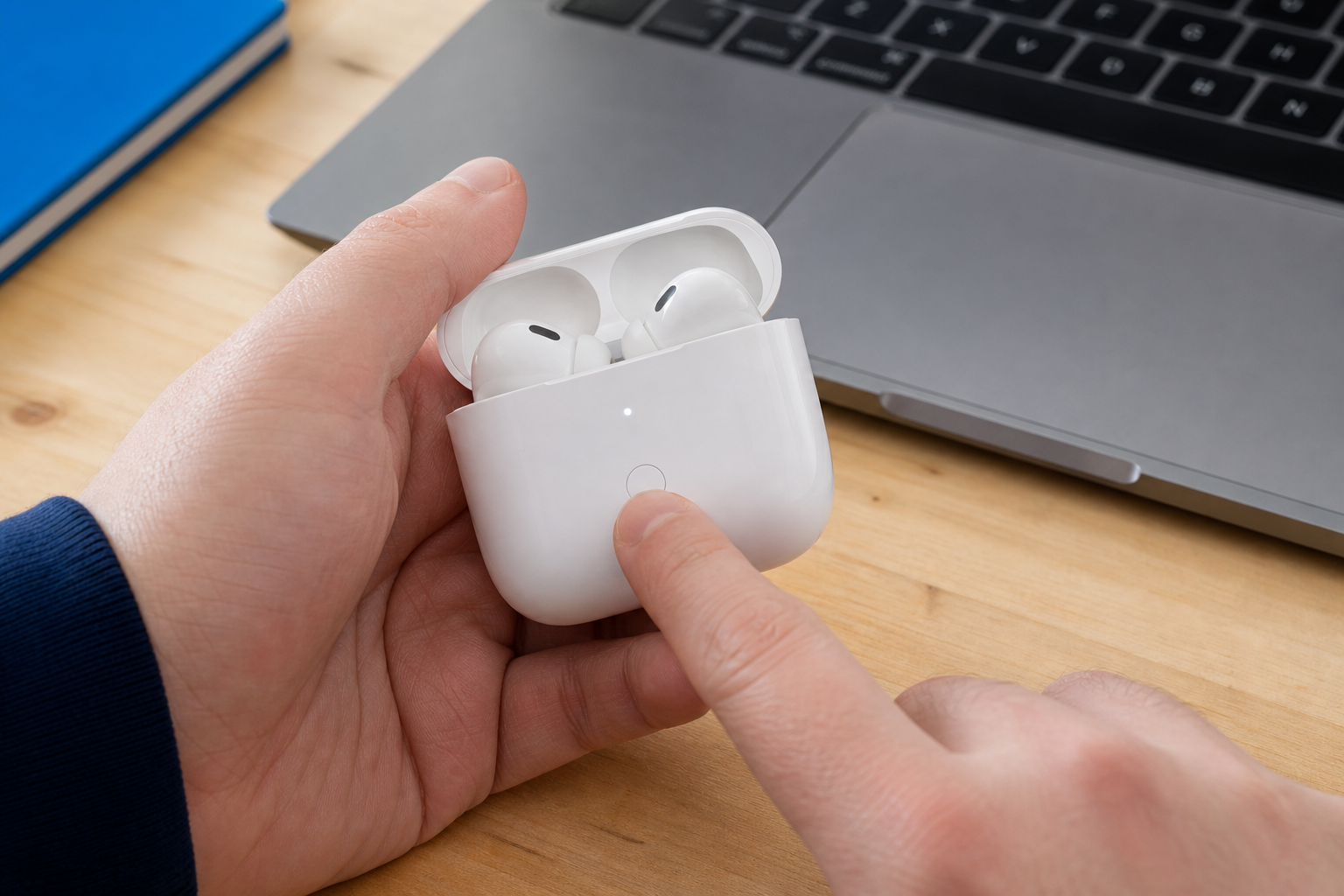
How to connect AirPods to a laptop: you do it via Bluetooth. Turn Bluetooth on, open the charging case with the earbuds inside and hold the button on the back until the light flashes white. Then select your AirPods in the Bluetooth list on your Windows laptop or MacBook and click connect.
Don't want to fiddle with cables during your online meeting or Netflix session? You're not the only one. It works on Windows and Mac; only the route through the settings is different.
In our experience, a connection that won't work is rarely down to faulty hardware and more often to a hidden setting. Often the wrong output device is selected, so the sound keeps coming out of the laptop speakers. That's why, alongside the step-by-step guide, you'll also find fixes for common audio problems.
Before you start: check your Bluetooth and charging case
Avoid a failed attempt by running the right hardware checks first. Without an active transmitter, your laptop will search endlessly for a signal. Go through these points before you start AirPods pairing:
Check Bluetooth support: Almost all modern laptops have a built-in Bluetooth chip. Does your older work PC lack this feature? Then use a compact USB Bluetooth adapter and plug it into a free USB port to add wireless functionality straight away.
Charge the charging case: Make sure both earbuds are in the charging case and have enough battery. A flat battery blocks detection straight away. Check this by opening the lid: a green light means fully charged, amber means it needs charging.
Understand pairing mode: The physical Setup button on the back of the case is essential. Hold it down with the lid open until the small LED flashes white, which shows the earbuds are actively broadcasting a signal. On first-generation AirPods this light is inside the case; on newer Pro models it's on the front.
How to connect AirPods to a Windows laptop
To connect AirPods to a Windows laptop, you need to do it manually, because Microsoft's ecosystem doesn't recognise the earbuds automatically through an iCloud account. Follow these steps for a stable connection in Windows 10 or 11:
-
1
Open the Bluetooth settings
Click the Start button, go to the gear icon for Settings and navigate to Bluetooth & devices in the left-hand menu. Check straight away that the main Bluetooth toggle is set to 'On'.
-
2
Activate pairing mode
Open the lid of the charging case, leave the AirPods inside and press the round button on the back until the status light flashes white. Using AirPods Max headphones? Then hold down the long noise control button instead.
-
3
Start searching
In the Windows menu, click the large 'Add device' button. In the pop-up window, choose the top option, 'Bluetooth', to start searching.
-
4
Select your earbuds
The laptop scans the area and shows a list of available Bluetooth devices. Click the name of your AirPods. Windows shows them as 'AirPods' or a similar name, as the name can differ after previous pairings or if there are other Apple devices nearby.
Setting up sound: choose the right output device
A successful Bluetooth pairing doesn't automatically mean you'll hear the audio. Windows often still sends the sound through the internal speakers. Here's how to change that:
Select the default output device: Left-click the speaker icon at the bottom right of the Windows taskbar. Click the arrow next to the volume slider and choose your AirPods from the list to change the audio routing.
Choose the right audio profile: Windows sometimes shows two profiles: 'Stereo' and 'Hands-Free AG Audio'. Always choose 'Stereo' for listening to media. The hands-free option is meant for calls with the microphone on, and music sounds noticeably thinner and tinnier with it.
Check specific apps: Programs like Microsoft Teams, Zoom or Skype sometimes ignore the general Windows settings. Open the sound settings within the app itself and explicitly select the AirPods as your main speaker and microphone.
How to connect AirPods to a MacBook (Mac)
Connecting AirPods to an Apple laptop is quicker than with other brands. Within the macOS ecosystem, the connection is almost automatic thanks to the built-in H1 or H2 chips. Follow these steps:
-
1
Go to System Settings
Click the Apple logo at the top left of your menu bar. Choose System Settings (or System Preferences on older macOS versions) and open the Bluetooth menu. Make sure it's switched on.
-
2
Put the earbuds in pairing mode
Open the lid of the charging case with the earbuds inside. Hold down the Setup button on the back until the white light pulses. This activates pairing mode.
-
3
Confirm the connection
Your AirPods will appear almost immediately in the list under 'My Devices' or 'Other Devices'. Click the blue 'Connect' button next to the product name.
-
4
Link to your Apple ID
Your MacBook may ask whether you want to link the earbuds to your iCloud account. Confirm this. From then on, they'll switch automatically between your Mac, iPad and iPhone without you having to open the Bluetooth settings again.
Differences between Windows and Mac when pairing
Why does AirPods pairing work differently on Windows than on macOS? The operating system determines how well everything is integrated. We've listed the main technical differences so you know what to expect.
Feature |
MacBook (macOS) |
Windows laptop |
|---|---|---|
Detection & setup |
Automatic via Apple ID (iCloud sync) |
Fully manual via the Bluetooth menu |
Where to find the settings |
Apple menu > System Settings > Bluetooth |
Start > Settings > Bluetooth & devices |
Connecting next time |
Your Mac remembers your AirPods and usually recognises them automatically |
Windows also remembers the pairing, but sometimes you need to select the AirPods as the output device again |
The difference lies in the laptop's software, not in a special chip. AirPods connect to any laptop via standard Bluetooth, so Windows works too.
Choose a MacBook if you switch between different Apple devices every day and value features such as spatial audio. Choose a Windows laptop if your priority is broad software compatibility for work or gaming, and you're fine with pairing Apple accessories being a bit more fiddly.
Frequently asked questions
Why won't my AirPods show up in the list of devices?
Usually Bluetooth is turned off on your laptop, or the AirPods aren't in pairing mode. Turn Bluetooth off and on again, open the charging case with the earbuds inside and hold the button on the back until the light flashes white. Also check the name carefully, as your laptop may show them as "AirPods" or a similar name.
How do I disconnect my AirPods from my laptop?
Go to the Bluetooth settings, click your AirPods and choose 'Remove device' in Windows or 'Forget This Device' on a Mac. Do this too if the connection keeps dropping or the sound stutters. Your laptop will then start with a clean slate the next time you pair.
Do I have to pair my AirPods every time?
No, your laptop remembers the AirPods after the first pairing. It usually recognises them automatically as soon as you open the case. If the sound still comes out of the laptop speakers, select the AirPods as the output device via the speaker icon.
Can you pair AirPods with a Windows laptop?
AirPods work with any Windows laptop that has Bluetooth. You pair them via Settings > Bluetooth & devices > Add device > Bluetooth. What you miss on Windows is the automatic detection via your Apple ID that a MacBook does have.
Why can't I hear anything when my AirPods are connected?
Your AirPods are paired, but not yet selected as the output device. Click the speaker icon in the taskbar or open the sound settings and select your AirPods there. We see a lot of people assume the pairing has failed at this point, when it's just one click.
How do I connect AirPods Max to my laptop?
You put AirPods Max into pairing mode with the noise control button instead of a button on a case. Hold that button down until the light flashes white, then add them via your laptop's Bluetooth settings. The rest of the steps are the same as for regular AirPods.
Can I use my AirPods for video calls on my laptop?
AirPods work in Teams and Zoom as both a microphone and headphones. Do select them separately as the microphone and the speaker in the app's audio settings, as the app doesn't always pick the right device by itself. If the audio sounds flatter during a call than with music, that's normal once the microphone is on and not a fault.
What if my laptop doesn't have Bluetooth?
A USB Bluetooth adapter solves that. Plug it into a free USB port and your laptop has Bluetooth, so you can pair your AirPods as usual. First check in your settings that there really is no Bluetooth built in, as almost all modern laptops already have it.
What if I keep having problems connecting?
First remove the old pairing from your laptop's Bluetooth list, then pair the AirPods again. If you leave that old pairing in place, the laptop will often try to use the old, broken connection.
Still not working? Check whether your AirPods are still connected to a phone or tablet nearby. Briefly turn Bluetooth off on that device and try again from your laptop.
You now know exactly how to put your AirPods into pairing mode and set them as the main output device on both a Windows laptop and a Mac. It only takes a few clicks, as long as your hardware is up to date and you choose the right audio routing. Test your new wireless connection straight away by putting on your favourite Spotify playlist or starting a test call!