Wondering how to check which Windows version you have? Press the Windows key and R together, type 'winver', and press Enter. A window shows your Windows version and OS build number.
You'll see whether your PC runs Windows 10 or 11. You can then look up your system type and exact device model. These details help you check whether you still receive security updates and which accessories fit.
Check your Windows version with a keyboard shortcut
A keyboard shortcut brings up your Windows version in seconds.
The winver command takes you straight to the version details. It's the same method IT staff and support teams use. Here's how to check:
-
1
Press the Windows key + R. The small 'Run' dialog opens in the lower-left corner of the screen.
-
2
Type winver in the text box and press Enter.
-
3
A window titled 'About Windows' opens and shows whether you have Windows 10 or 11. Below the logo, you'll see the exact version, such as 22H2, and the full OS build number.
-
4
If you're having trouble with a program, you can send a screenshot of this window to technical support. The build number helps them identify any missing updates. You can also use these details to check whether peripherals and laptop accessories work with your installation.
This method gives you the actual version and build number, so you don't have to judge by the look of your Start menu.
Check your Windows version in Settings
In the Netherlands, 61 percent of PCs run Windows 11, and just over 37 percent still run Windows 10. Depending on your system, the Start button may be on the left or in the center. The path to your system information is the same. Use Settings if you prefer menus to typing commands.
Here's how to find the details about your operating system:
-
1
Open the Start menu and select Settings > System > About. In newer versions, look for the gear icon to find Settings.
-
2
Scroll down the About page to 'Windows specifications'.
-
3
Check Edition to see whether you have Home or Pro, for example. Some advanced networking features are available only in Pro.
-
4
Under Version, look for a short code such as 22H2 or 23H2. It tells you which major feature update is installed.
-
5
Finally, check OS build. This number shows your exact patch level. If you're having problems, technical support can use it to check for a missing update.
Farther up the same page, you'll see how much RAM your laptop has and which processor it uses. Those details help you check whether it can handle a demanding program.
System type: Do I have 32-bit or 64-bit Windows?
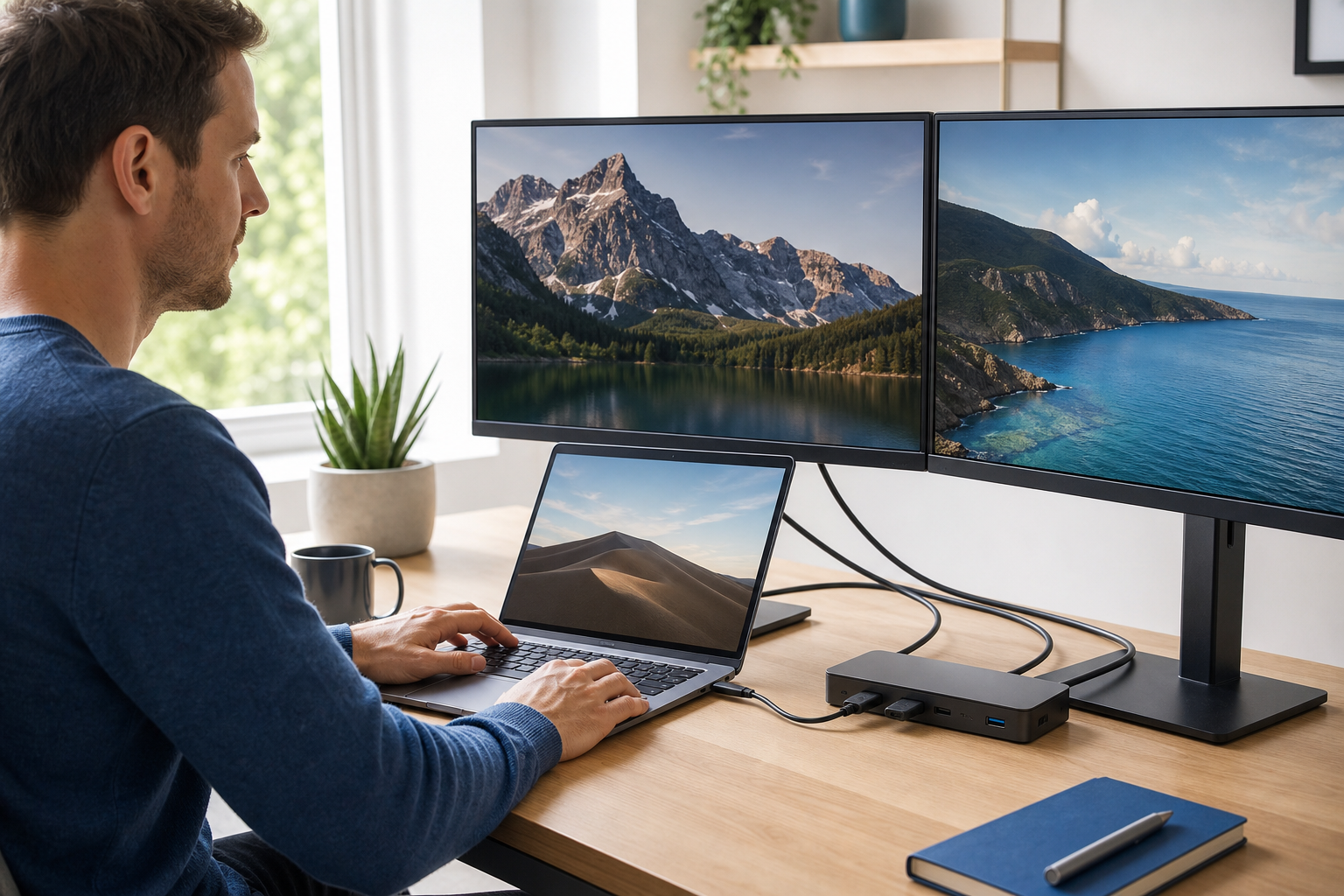
You connect a docking station to your laptop, but the extra monitors stay blank. One possible cause is a driver built for a different system type. The difference between 32-bit and 64-bit Windows affects what your computer can handle.
Here's what to check about your system type:
On the About page in Settings, look under 'Device specifications' to see whether you have a 32-bit or 64-bit operating system.
Your system type affects how much RAM you can use and what software you can run. A 32-bit system is limited to 4 GB of RAM. A 64-bit installation can use much more.
Compatible drivers matter when you connect hardware. Peripherals or devices connected with high-speed USB-C data cables may need software that matches your system.
Microsoft offers Windows 11 only as a 64-bit operating system, so it doesn't have the same 32-bit system limits.
How to find your laptop model number
When you're shopping for a case or bag, check the model number printed on or reported by your laptop. The Windows version tells you which software it runs. Knowing the exact laptop model helps you choose accessories made for it. A difference of a few millimeters can leave ports or vents blocked.
Follow these steps to find your laptop model:
-
1
Search for 'System Information' from Start and open the Windows app.
-
2
Find 'System Model' in the overview and note the letters and numbers listed there.
-
3
You can also check the label on the underside of your laptop. The model number is often printed in small type or engraved on the case.
-
4
Choose accessories that match your device. A Mobigear hard case or laptop sleeve fits properly only if its dimensions match your laptop.
-
5
Keep your model number handy when you shop. Use it to check how closely a sleeve fits or compare the space inside different bags.

Support and updates: How long will your system receive updates?
When support for a Windows version ends, the system becomes more vulnerable to security threats. Windows 10 support officially ended on October 14, 2025. Since then, millions of devices have stopped receiving regular security updates.
The table shows when support ends or ended.
| Windows version | End of support | Status |
|---|---|---|
| Windows 11 | Varies by version and edition. | Check the end date for your version and edition. |
| Windows 10 Home and Pro | Regular support for version 22H2 ended on October 14, 2025. | Support for earlier versions ended sooner. |
| Windows 10 (Extended Security Updates for consumers) | October 13, 2026 | Windows 10 version 22H2 users who enrolled in ESU could receive extended security updates through October 13, 2026. |
| Windows 7 and 8.1 | Ended | High risk. These versions no longer receive security updates. |
Older versions such as Windows 7 and 8.1 no longer receive updates and pose a significant security risk. Avoid using these operating systems for everyday tasks or online banking.
Extended Security Updates for Windows 10 consumers ended on October 13, 2026. If you use Windows 10 Home or Pro, check whether your PC can run Windows 11.
Frequently asked questions
Do I have Windows 10 or Windows 11?
Press the Windows key + R and type 'winver'. The window displays the Windows version at the top. You can also look at the taskbar. If the Start button is in the center, you have Windows 11. If it's in the far left corner, you're probably running Windows 10.
Do I have 32-bit or 64-bit Windows?
Go to Settings > System > About and look under 'Device specifications'. 'System type' tells you whether you have a 32-bit or 64-bit operating system. That matters when you're downloading drivers or installing demanding software. Windows 11 is only available as a 64-bit operating system.
How do I know if my PC can run Windows 11?
Download Microsoft's free 'PC Health Check' app and run it on your laptop or desktop. It checks whether your hardware meets the requirements. If your PC qualifies, the upgrade option often appears in Windows Update.
How old can a PC be and still run Windows 11?
As a rule of thumb, PCs from 2018 or later are usually compatible. The processor is a deciding factor: you need at least an 8th-generation Intel processor or an AMD Ryzen 2000 series processor. Older laptops often lack the required TPM 2.0 security chip. You can sometimes force an installation on older hardware, but that can cause problems with future security updates.
How long can I keep using Windows 11?
How long you receive security updates depends on your Windows 11 version and edition. Find yours under Settings > System > About, then look it up in Microsoft's support lifecycle information.
Use the keyboard shortcut or Settings to check your Windows version and see what works with your system. Press the Windows key + R to check your software. Then note your laptop model number to find the right accessories at directcases.com.