Your smartphone stopped being just for calls a long time ago; it's now your essential second office screen for quick communication, two-factor authentication and managing your calendar. Yet that powerful device often lies flat on your desk, which leads to poor posture and missed notifications while you're working on important tasks. Find out which office phone accessories make your desk more ergonomic right away and help you get far more done in your working day.
Essential desk phone accessories
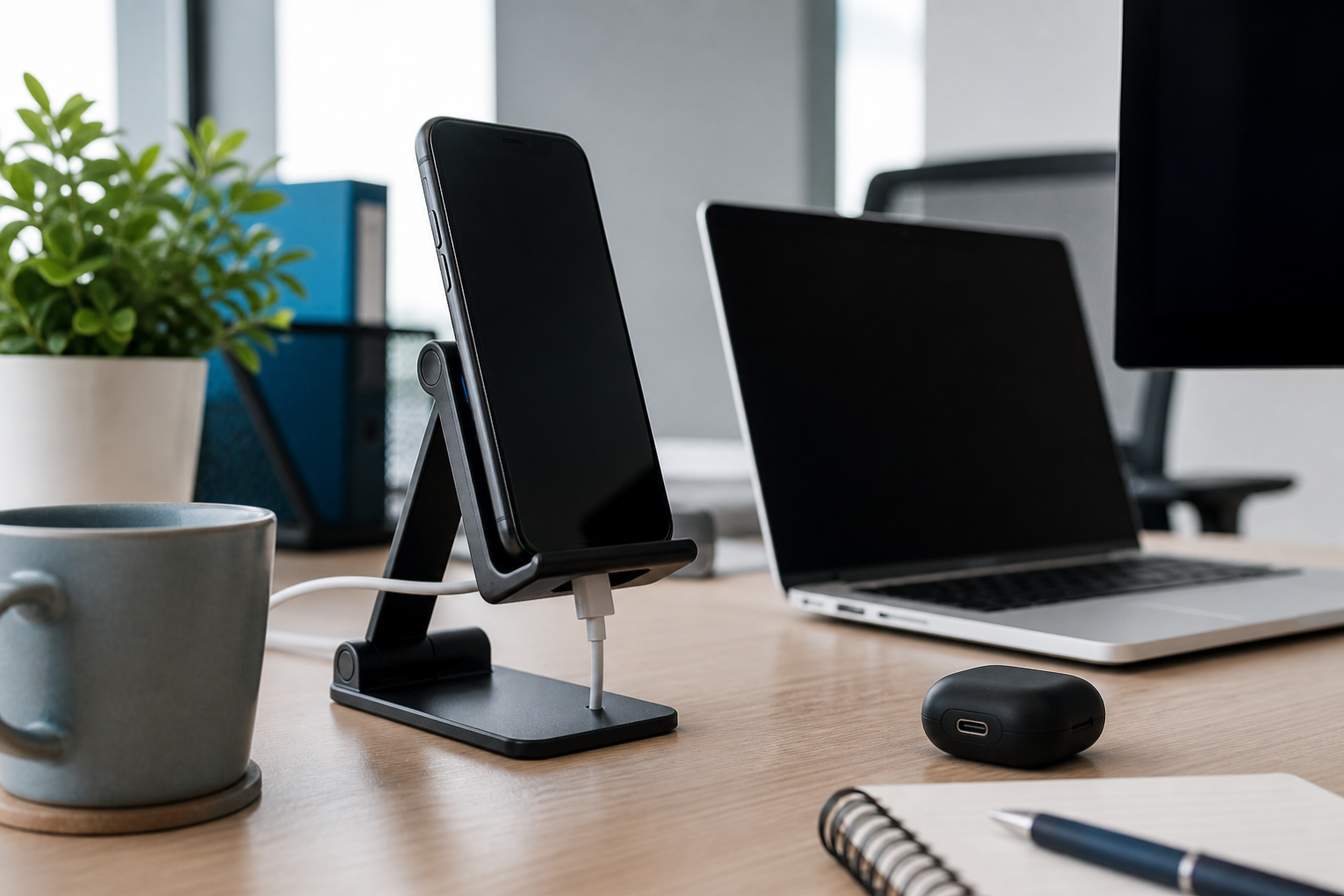
Do your neck or shoulders often ache at the end of a long working day? A mobile phone lying flat on your desk is often the culprit. You keep tilting your head forward at an unnatural angle to read incoming messages or trigger face recognition. Office accessories that hold your device upright at eye level prevent this unnecessary strain on your neck.
A fixed, ergonomic spot for your device does more than improve your posture, too. A clearly defined place on your desk gives you peace of mind and helps you focus. You always know exactly where your mobile phone is, charging cables no longer get in the way, and you can glance at notifications out of the corner of your eye without breaking your workflow on your monitor.
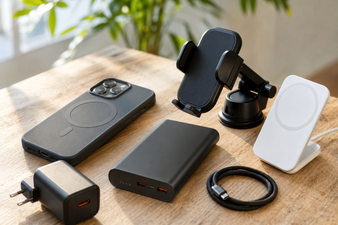
Every modern, healthy workspace starts with three basics. First, something to raise your mobile phone to the right viewing angle. Second, a reliable power supply that suits your battery capacity. Finally, a sturdy phone case is essential to protect the fragile glass back and aluminium sides from scratches caused by stray pens or keys. With these foundations in place, you can turn a cluttered desk into a neatly organised workstation straight away.
Phone stand vs docking station: which should you choose?
Both options bring your screen up to eye level, but they work very differently. A simple phone holder focuses purely on positioning, while a more advanced docking station greatly expands what your device can connect to.
| Feature | Phone Stand | Docking Station |
|---|---|---|
| Main function | Creates an ergonomic viewing angle | Handles charging and data transfer |
| Price guide | €15–€35 | €45–€120+ |
| Cables | None (or plug in manually) | Built-in ports |
| Ideal for | Video calls, reading notifications | Connecting peripherals, fast charging |
| Portability | Lightweight, easy to move | Heavier, designed to stay in one place |
Choose a phone stand if you're a freelancer working from different locations who mainly wants an affordable, ergonomic stand for video calls. You can read notifications at a glance without being tied to a complicated cable setup.
Choose a docking station if you work at a fixed desk in the office and want a single all-in-one solution. Just pop your mobile phone into the dock and it starts charging, while you transfer data to your computer through the built-in ports at the same time.
Fast charging at work: wireless or USB charger?
With a well-planned charging setup on your desk, a flat battery right before an important video meeting is a thing of the past. Whether you go for the convenience of wireless charging or the raw speed of a cable depends entirely on how your day is structured and the type of mobile phone you use.
| Specification | Qi Wireless Charger | Wired USB-C Charger |
|---|---|---|
| Maximum charging speed | 10W to 15W (on average) | 25W to 65W+ (Power Delivery) |
| Ease of use | Very high ('drop and charge') | Average (you need to plug in a cable) |
| Heat generation | Higher, can affect battery wear | Lower, more efficient power transfer |
| Compatibility | Newer Apple & high-end Android phones | Universal (almost all work phones) |
| Use while charging | Limited (phone has to stay on the pad) | Flexible (depends on cable length) |
Choose a wireless charger if you pick up your mobile phone and put it down again throughout the working day. The 'drop and charge' approach keeps your battery topped up without wearing out your smartphone's charging port from constant plugging in.
Choose a wired USB charger if your battery often runs low and you need as much charge as possible within thirty minutes for an appointment out of the office. For work phones such as a recent Samsung, a cable gives you the most reliable and fastest charge via Power Delivery protocols.
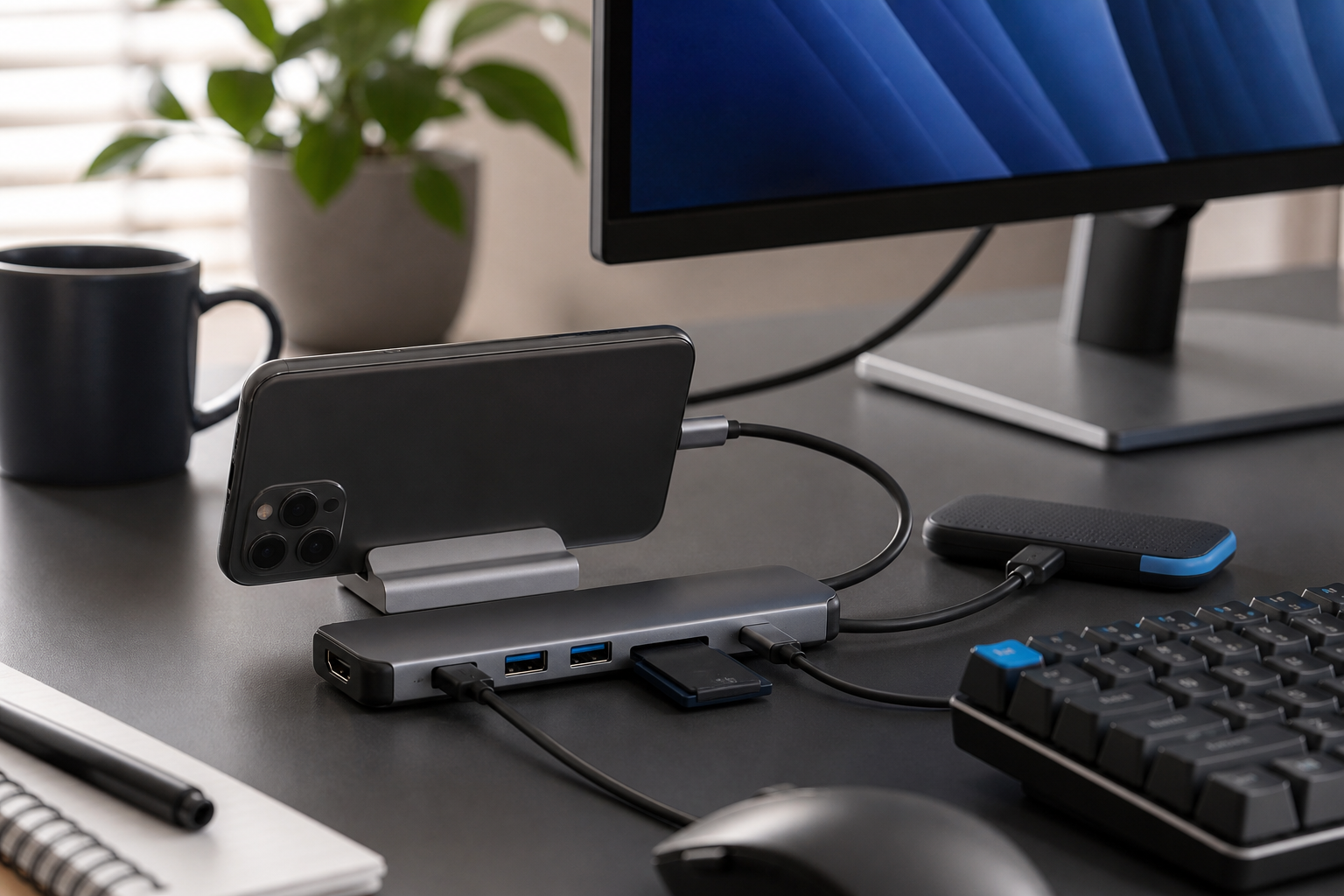
Connectivity: turn your phone into a mini PC with a USB hub
Today's smartphones have powerful processors that easily match an entry-level laptop. With the right connectivity accessories, you can make full use of that mobile processing power and turn your device into a fully fledged workstation.
Connect straight to your office equipment: Plug a compact USB hub into your mobile phone's port and connect an external monitor, a mechanical keyboard and a precision mouse. Some operating systems switch the mobile interface to a familiar, mouse-friendly desktop environment as soon as you connect.
Local data transfer without delays: Moving large video files or graphic-heavy presentations over slow office Wi-Fi wastes time. With the hub, you can simply connect an external SSD and transfer gigabytes of work files quickly and locally, without relying on cloud services.
The ultimate presentation setup: Walk into a meeting room, plug the projector's HDMI cable straight into your hub and start your presentation. No need to lug a heavy laptop around or log in to an unfamiliar guest computer.
Easy setup at hot desks: Because all your peripherals stay connected to the hub, you only need to plug a single cable into your smartphone when you arrive at a shared office. You can get started right away, keeping setup time at each location to a minimum.
Stable wired internet: Wi-Fi in large office buildings can be unreliable when the network is overloaded. A hub with an Ethernet port gives your smartphone direct access to the fast, wired company network for smooth video calls.
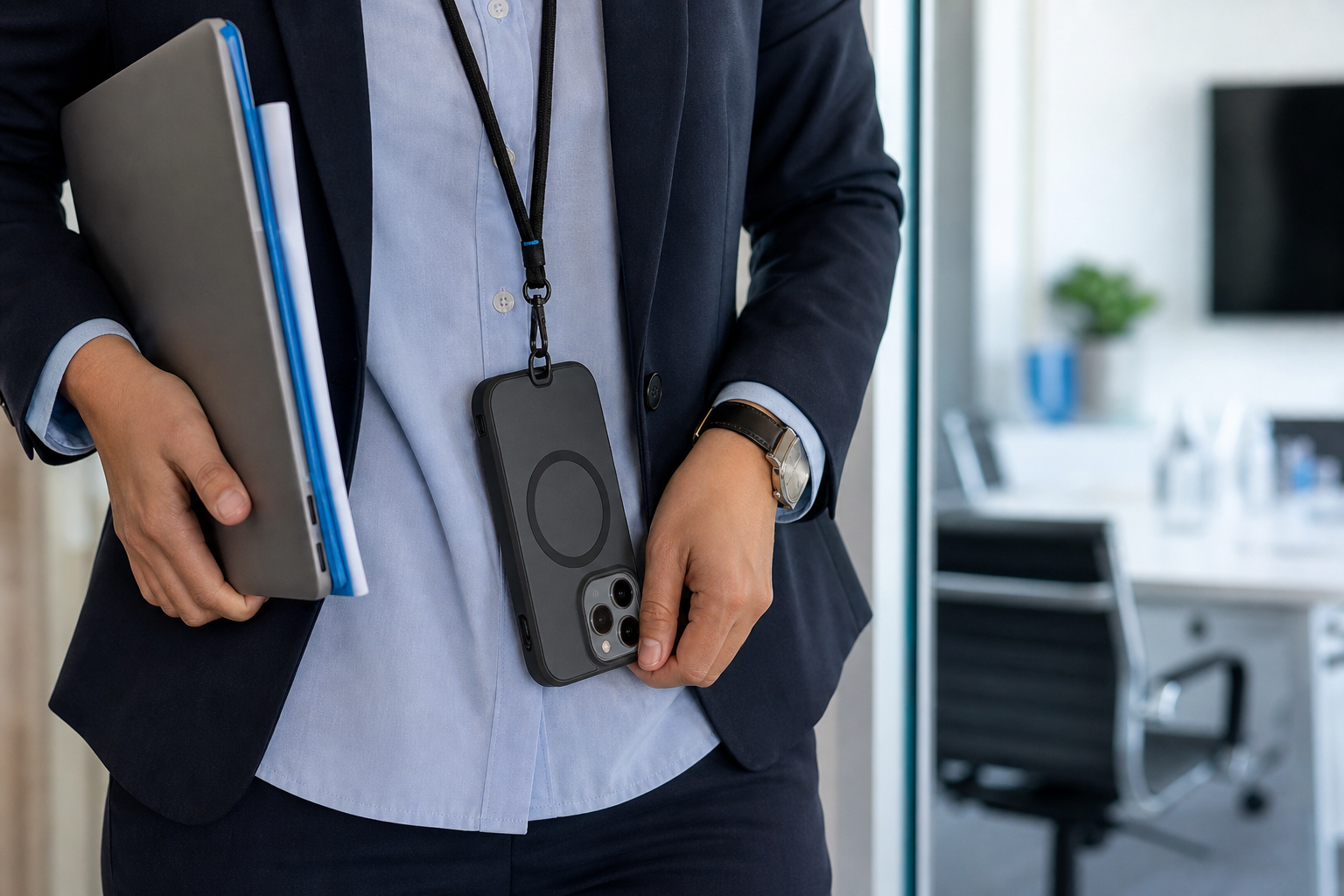
Mobile and protected during office meetings
Office work these days rarely means sitting at the same desk for eight hours straight. You move between departments, rush to an overbooked meeting room and grab coffee with colleagues. It's during these moments on the move that your devices are most at risk of damage.
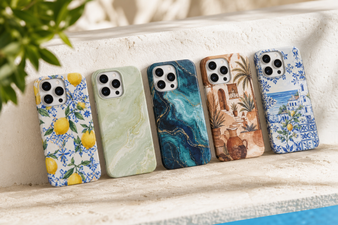
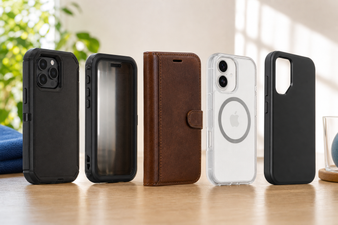
Choose a professional-looking, shock-absorbing phone case: Mobile phones slide off smooth meeting tables surprisingly easily, or slip out of your hand when you're hurrying to hold a lift door. A business-style back cover or a shockproof phone case with reinforced corners prevents costly drop damage and keeps your device free from scratches.
Make use of a phone strap: Do you often walk down the corridors with an open laptop under one arm and a pile of documents in the other? With a sturdy phone strap or phone case with lanyard, you can hang your mobile phone safely around your neck, keeping your hands free while staying reachable.
Always carry a compact power bank: Long, intensive brainstorming sessions often take place in creative spaces with hardly any plug sockets. A charged power bank in your bag means you'll never run out of power while you're typing up important notes.
Use a case with a built-in card holder: Do you need an RFID access card for the car park, the printer and different parts of the building? A phone case with card holder keeps your essentials together, so you'll never be left searching for your card at a locked door.
Invest in a privacy screen protector: In meetings or open-plan offices, it's easy for colleagues to glance at your screen. A privacy screen protector makes your display readable only from straight on, protecting sensitive company information from prying eyes.
Step-by-step plan: optimise your workspace with phone accessories
An ergonomic, efficient desk doesn't come from putting things down at random. Follow this step-by-step plan to position your accessories for maximum productivity every day.
-
1
Place your phone holder at eye level next to your monitor
Position the stand at an angle of exactly 45 degrees to your main screen. That way, you only need to move your eyes slightly to check incoming notifications, which prevents unnecessary and painful twisting of your neck.
-
2
Tidy away messy cables with a hub
Attach your hub under your desk with strong double-sided tape, or tuck any excess cable away in a cable tray. Make sure only one short connecting cable is visible on your desk to keep things looking uncluttered.
-
3
Create a fixed, easy-to-reach charging spot
Run the cable from your fast charger through a weighted cable clip to a fixed, dedicated corner of your desk. This stops the power cable falling on the floor when you unplug your mobile phone, so you'll never have to crawl under your desk again.
-
4
Put together a grab-and-go kit for unexpected meetings
Set aside a pocket in your laptop bag or the top drawer of your desk pedestal for a fully charged power bank and a short, durable charging cable. When you suddenly need to head out to a meeting, you can grab this emergency kit without thinking.
-
5
Set up a zone for your audio equipment
Noise-cancelling headphones may not be a traditional desk accessory, but they're essential for deep focus in an open-plan office. Place a dedicated headphone stand directly behind your phone holder, so your audio and communication gear are all in one logical spot.
-
6
Review your setup every week
At the end of the working week, notice which accessories you actually used and which are just gathering dust. Remove unused items from your desk straight away to keep your workspace minimal and productive.
Start with the essentials: a sturdy, ergonomic phone holder and a reliable fast charger. Only then expand your setup based on how much you move around at work and what you need to connect to every day. If you mostly work in one place, invest in data transfer; if you're on the move a lot, focus on drop protection and portable power. Browse our full range of office phone accessories and upgrade your workspace today.